SOS button for kids: how to set it up so it actually gets used
By Vahe Mailyan, Founder, SafeLoop · · 8 min read
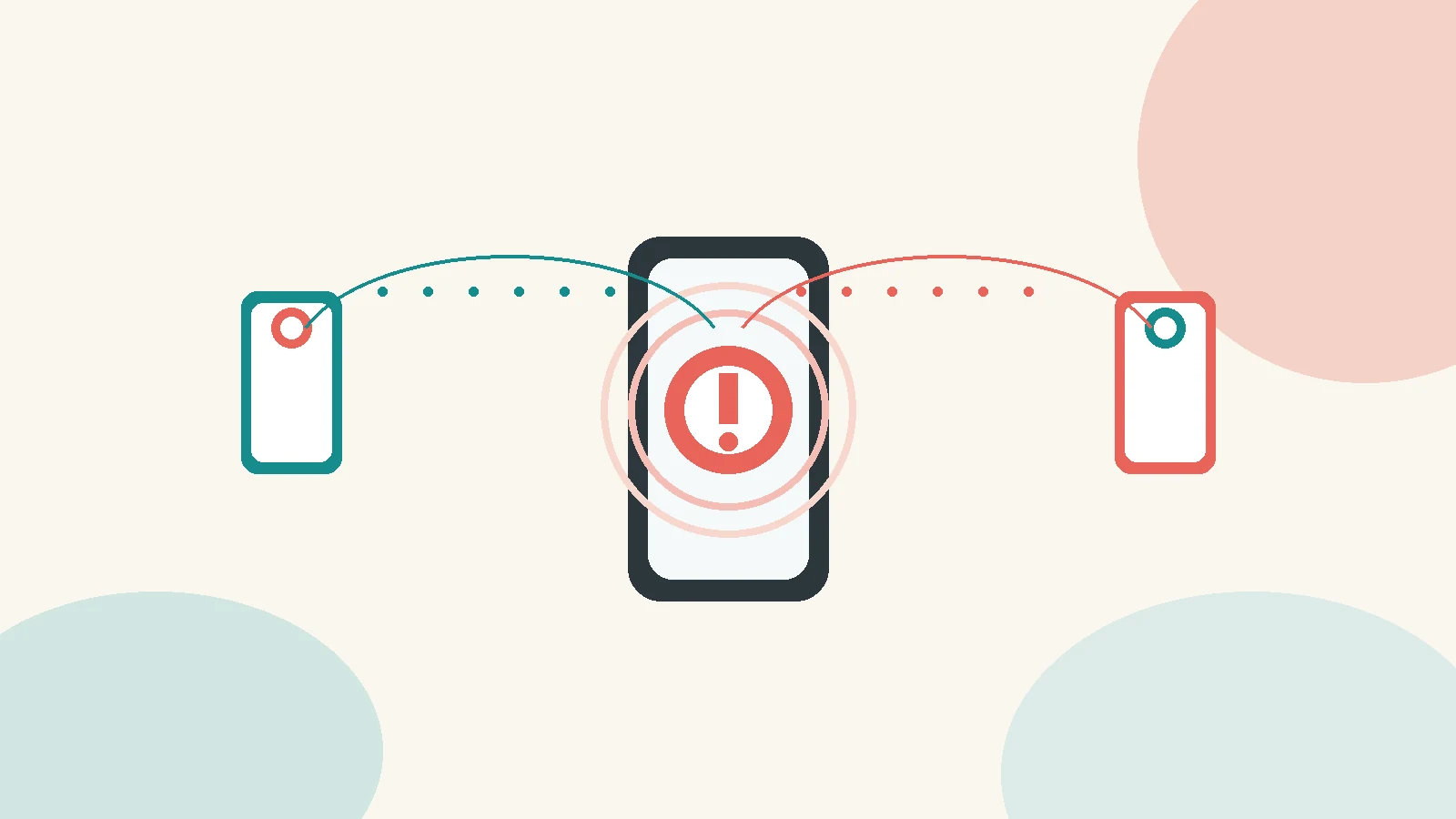
Most parents set up location sharing and never touch the SOS button again. It sits on the screen like a fire extinguisher: there if you need it, ignored until you do. The problem is that in a real scare, a kid who has never practiced pressing it won't think of it. They'll call, text, freeze or just keep walking.
I'm the founder of SafeLoop, a Los Angeles family-safety app. We put SOS on every plan, including Free, because a held button that sends live coordinates to every guardian still matters when the rest of the day is fine. This guide is about making sure your child will actually use it — when SOS helps, when 911 still comes first, and how crash detection fits in as a separate Pro feature.
If you're still deciding whether any tracking is right for your family, start with what age kids should get location tracking. If you already share location and want the alerts to stay useful, our guide on geofence alerts for kids covers scheduled zones without the noise.
What an SOS button is (and isn't)
An SOS button in a family app is a deliberate, hard-to-trigger action that tells every linked guardian: something is wrong, and here is where I am right now. In SafeLoop, that means holding the button so it can't fire from a pocket tap. Guardians get the live coordinates. That's the whole job.
It is not a replacement for 911. If your child is in immediate danger, needs an ambulance or needs police, they should call emergency services first when they can. SOS is for the moments when they need you — or every adult on the family loop — to know where they are: a wrong bus stop, a scary stretch of the walk home, a fall where they can still reach their phone, or a situation that feels wrong but isn't a full emergency yet. Think of it as "I need help and this is my pin," not a silent alarm that replaces a phone call.
When SOS actually helps
The situations where a practiced SOS button earns its keep are usually ordinary, not dramatic:
- They're delayed and scared, not injured. The walk took a wrong turn. They can reach the phone, but a long text while moving isn't realistic.
- They can't talk comfortably. A hold is quieter and faster than a call when they're upset, in a loud place or don't want people nearby to hear.
- More than one adult needs the same pin. Calling one parent leaves the others out. SOS reaches every guardian with the same live coordinates.
- The schedule is fine; this is the exception. Geofence alerts answer "did they get there?" SOS answers "I need you now, here's where I am."
It does less good when nobody has practiced it, the phone is dead, permissions were turned off weeks ago or the child thinks pressing it will get them in trouble. Setup is mostly about those.
Set it up with your kid, not for them
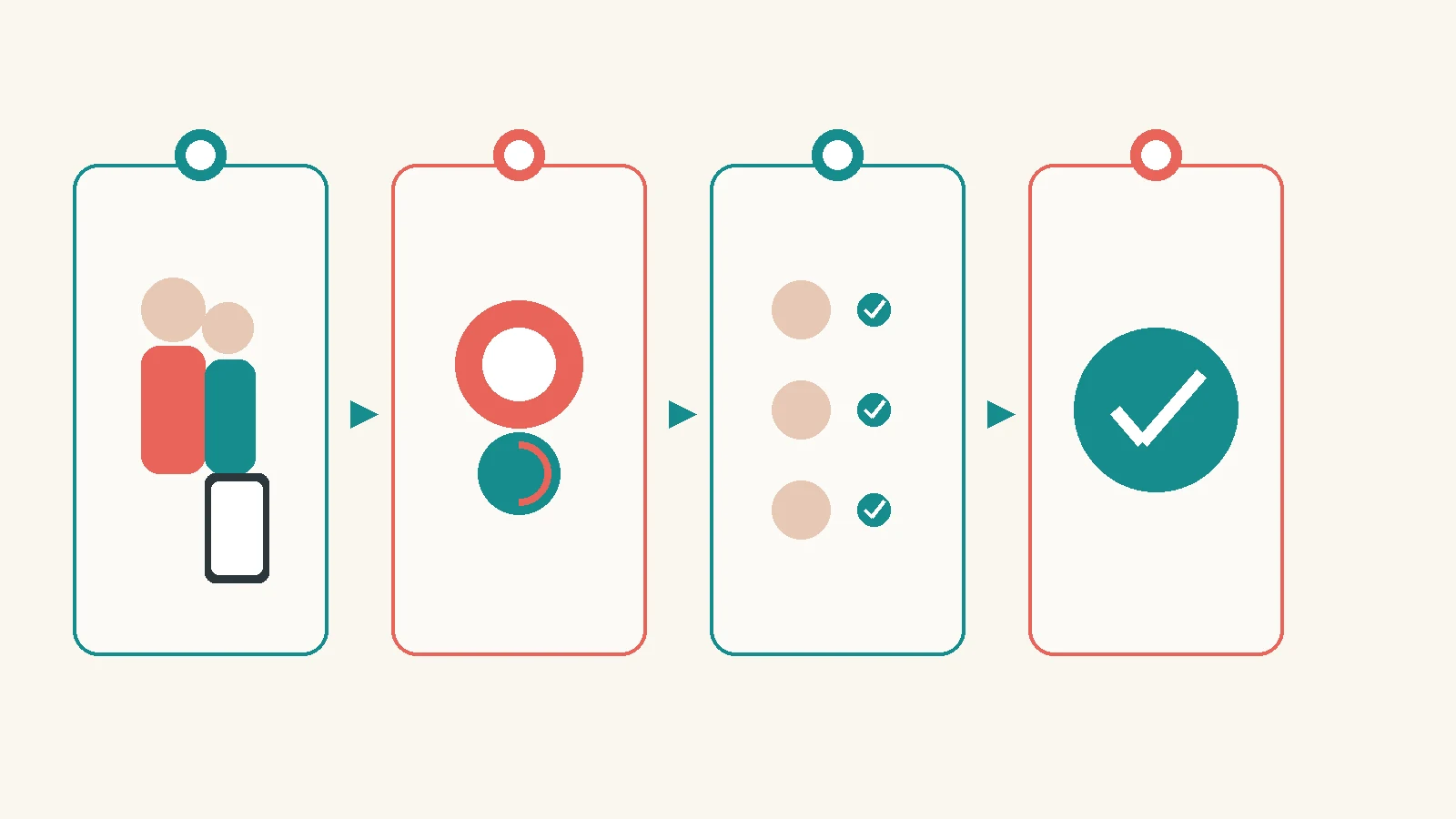
Sit down together before the first real scare. Open the app on their phone and on yours. Show them exactly where the SOS control is, what "hold" means and who will get the alert. Say it in plain language: "If you ever feel unsafe, hold this. Everyone on our family list gets your location. You will not get in trouble for pressing it. If it was a false alarm, we'll just talk."
That last sentence matters more than the button design. Kids who think SOS is only for "real emergencies" — and who worry they'll be lectured for a wrong call — wait too long. Permission to use it imperfectly is what makes them use it at all.
Agree on a short list of when it's appropriate: feeling followed, can't find the right pickup, hurt and need you, scared and need a grown-up. Agree that 911 still comes first when someone is badly hurt or in immediate danger. Then do one practice press together so both of you see the guardian notification.
Practice, false alarms and who gets notified
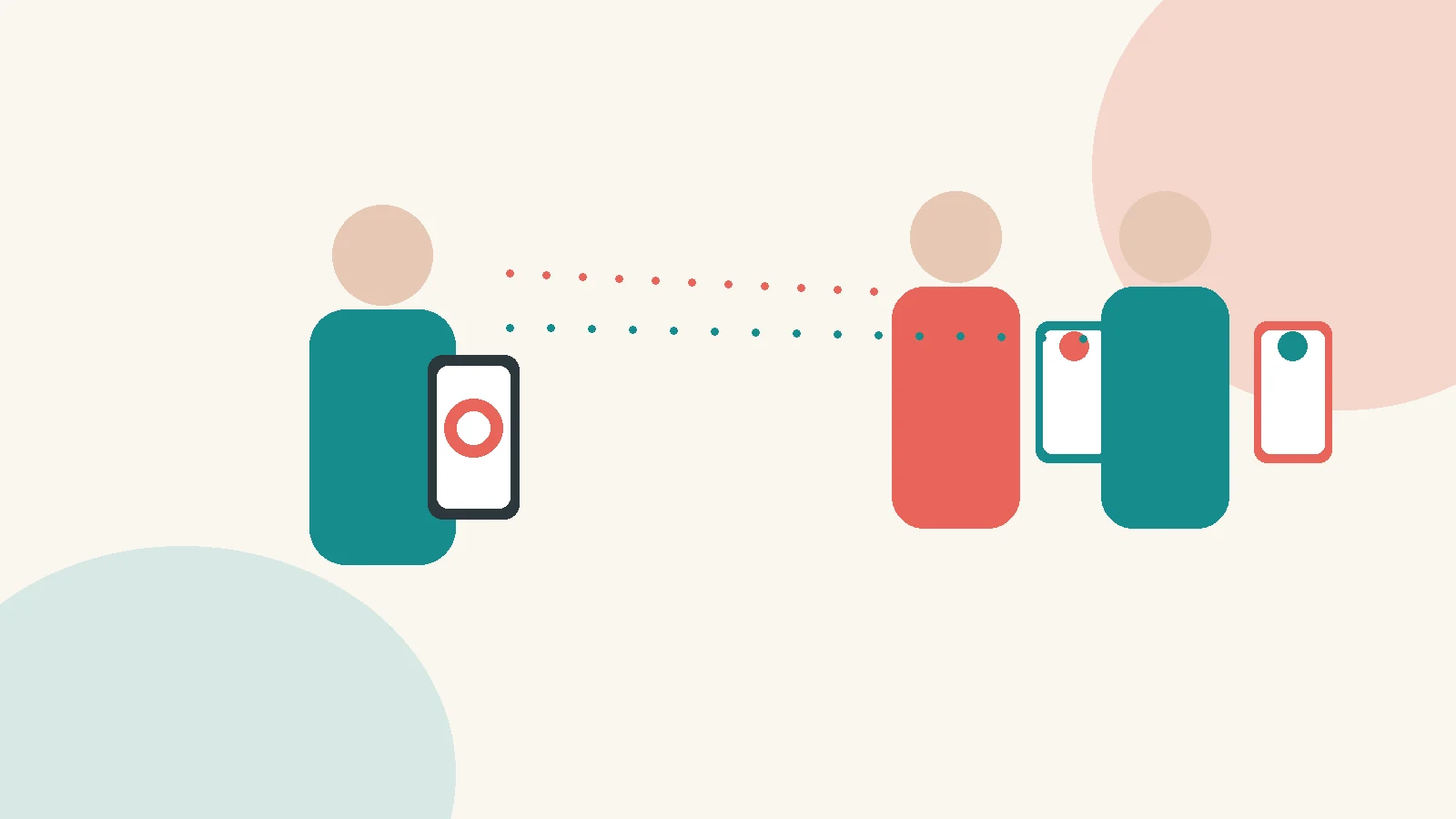
One dry run is enough for most families. Have your child hold the button while you're in the same room. Confirm every guardian on the loop receives it. Then clear or dismiss the alert so nobody thinks it's live.
False alarms will happen. A backpack, a sibling, a nervous first week. Treat the first few the same way you'd treat a fire drill that went off by accident: thank them for practicing the motion, reset, move on. If you punish a false SOS, you've taught them not to press it when it counts.
Who gets notified should be intentional. SOS typically goes to all linked guardians — two parents, a grandparent who does pickup, a trusted adult after school. Review the member list when you set SOS up, and again when caregiving changes. Who should (or shouldn't) get a live pin is a membership question, not something to discover during a real alert.
If you share location with a teen, our guide on how to track a teen without spying pairs well: SOS works best when the kid already knows what's on and who sees what.
Crash detection is separate (and Pro-only)
Parents often lump SOS and crash detection together. They're related, but they're not the same feature.
SOS is something your child chooses: hold the button, send coordinates. It belongs on every plan because a deliberate call for help shouldn't require an upgrade.
Crash detection is automatic. On SafeLoop Pro, the phone can detect a likely crash and alert guardians without anyone pressing anything. That's useful for teens who drive, older kids on bikes or scooters, or anyone whose risk is "something happened and they can't reach the phone." It is not on Free or Standard. If automatic crash alerts matter for your household, that's a Pro decision — not something to assume from the SOS button alone.
Neither feature replaces seat belts, helmets or calling 911 when someone is hurt. They give guardians a faster pin and a clearer signal.
A short checklist before you rely on it
Before you treat SOS as part of your family's safety plan, walk through this once:
- Phone charged, permissions on. Location and notifications have to stay allowed. On Standard and Pro, SafeLoop can alert you if the app is removed, GPS is turned off or permissions change during a zone's active hours.
- Every guardian who should get SOS is on the loop. Open the member list and confirm.
- Your child can find and hold the button without hunting. One practice press beats a screenshot in a group chat.
- You've said out loud that false alarms are OK. Remove the fear of being wrong.
- You've drawn the line with 911. SOS notifies family. Emergency services still handle immediate danger and medical emergencies.
- Battery and after-school reality match. A phone left in a locker or dead at 3:15 can't send anything. Charge overnight, bring the phone, keep it on.
If those six are solid, the button is ready. If any aren't, fix that before you count on it.
How it works in SafeLoop
In SafeLoop, SOS is a hold-to-send control that shares live coordinates with every guardian. It is on Free, Standard and Pro. Your child sees the same zones, schedules and alerts you do, so nothing runs behind their back. They do not see the live map parents use.
A few product facts, stated plainly:
- Free: 1 member, 1 zone, SOS.
- Standard ($4.99): 3 members, 5 zones, 3-day history, tamper alerts (app removed, GPS off or permissions changed), trips.
- Pro ($9.99): 10 members, 10 zones, 7-day history, crash detection, speed alerts, route replay, daily summary.
We use scheduled zones so guardians aren't watching a continuous trail. When a member is stopped outside every zone, you don't see where they are. Raw location is deleted after 7 days; trips are kept for 30 days. We never sell your family's data — details are on our privacy policy.
For a broader comparison, see our guide to Life360 alternatives for privacy-minded families. To try SafeLoop, start on the families page.
Frequently asked questions
What does an SOS button do in a family safety app?
It sends a deliberate alert to every linked guardian with the child's live coordinates. In SafeLoop you hold the button so it doesn't fire from a pocket tap. It's a fast way to say "I need help and this is where I am," not a replacement for calling 911 in an immediate emergency.
Will my child get in trouble for a false SOS alert?
They shouldn't. A false alarm is a successful practice of the motion. If kids expect a lecture for pressing SOS by mistake, they wait too long when something is actually wrong. Reset the alert, thank them for trying it and move on.
Who gets notified when my child presses SOS?
Every guardian linked on your family loop. Review that list when you set SOS up and whenever caregiving changes, so the right adults get the pin and the wrong ones don't.
Is crash detection the same as the SOS button?
No. SOS is a manual hold your child chooses. Crash detection on SafeLoop Pro can alert guardians automatically after a likely crash, without anyone pressing a button. SOS is on every plan, including Free; crash detection is Pro only.
Does my child see the same live map I do?
No. In SafeLoop, kids see the same zones, schedules and alerts you do so nothing runs behind their back, but they do not see the live map parents use. SOS still sends guardians the live coordinates when it's pressed.
Try SafeLoop free
Scheduled zones, SOS on every plan, and kids see what you see.
The Free plan covers 1 member and 1 zone with SOS alerts. Standard is $4.99/month per family (up to 3 members, up to 5 zones, 3-day history, SOS alerts, tamper alerts, trips (street-level routes)). Pro is $9.99/month per family (up to 10 members, up to 10 zones, 7-day history, crash detection, speed alerts, route replay, daily summary). Subscriptions are billed through the App Store or Google Play.
Keep reading
Geofence alerts for kids: how to set them up without the overload
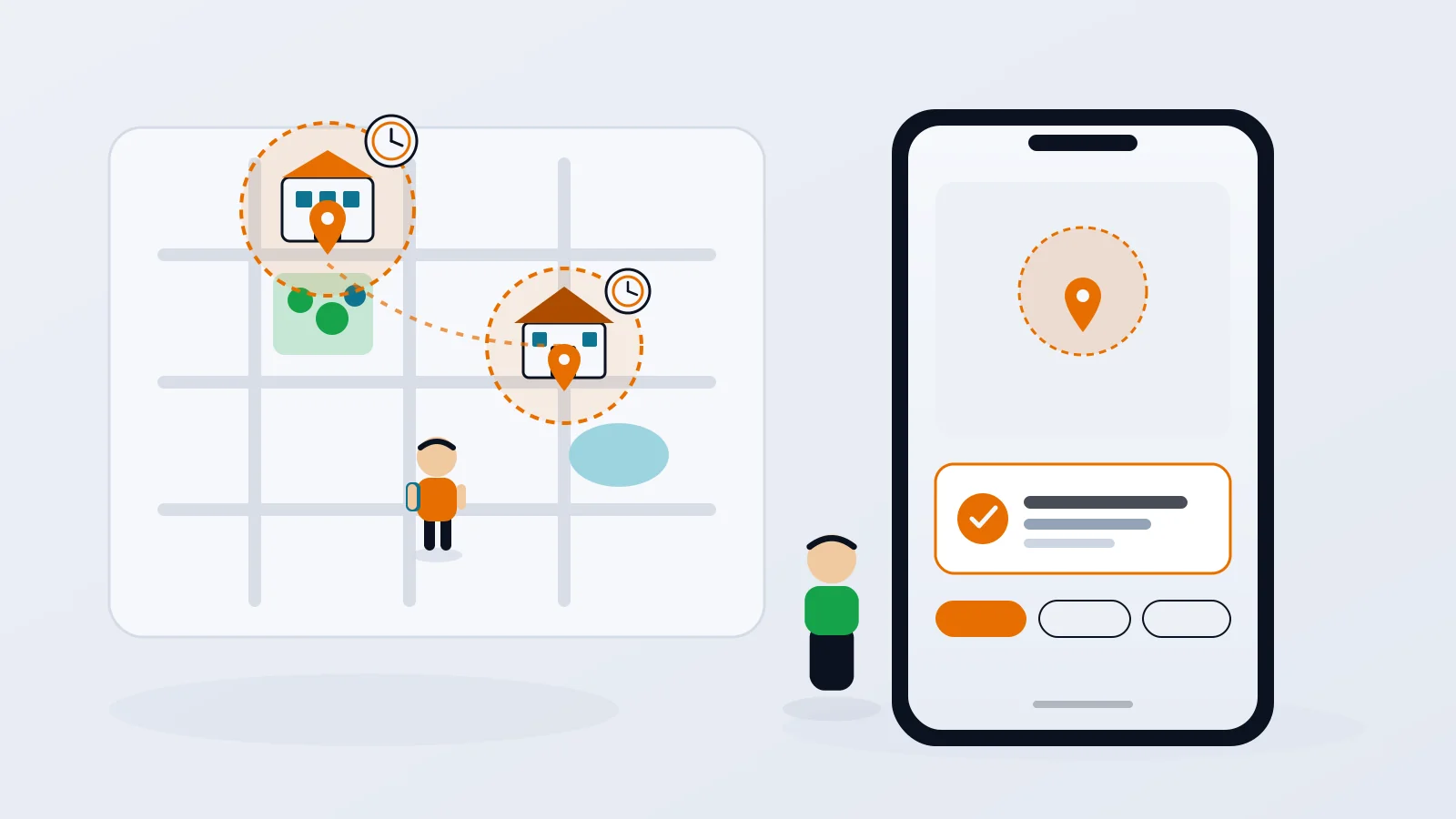
Arrival alerts are only useful if you still read them. How to pick the right places, put each one on a schedule, and get the "she got to school" message without the noise.
· 8 min read
How to track your teen without spying
The difference between location sharing and spying isn't the app. It's whether your teen knows, agrees and can see what you see. Here's how to set it up so it holds up.
· 7 min read
What age should kids get location tracking?
There's no single right age. What matters is the first time your kid is somewhere on their own, and how you plan to dial it back as they grow.
· 7 min readMore in our family safety guides and on the blog.