Geofence alerts for kids: how to set them up without the overload
By Vahe Mailyan, Founder, SafeLoop · · 8 min read
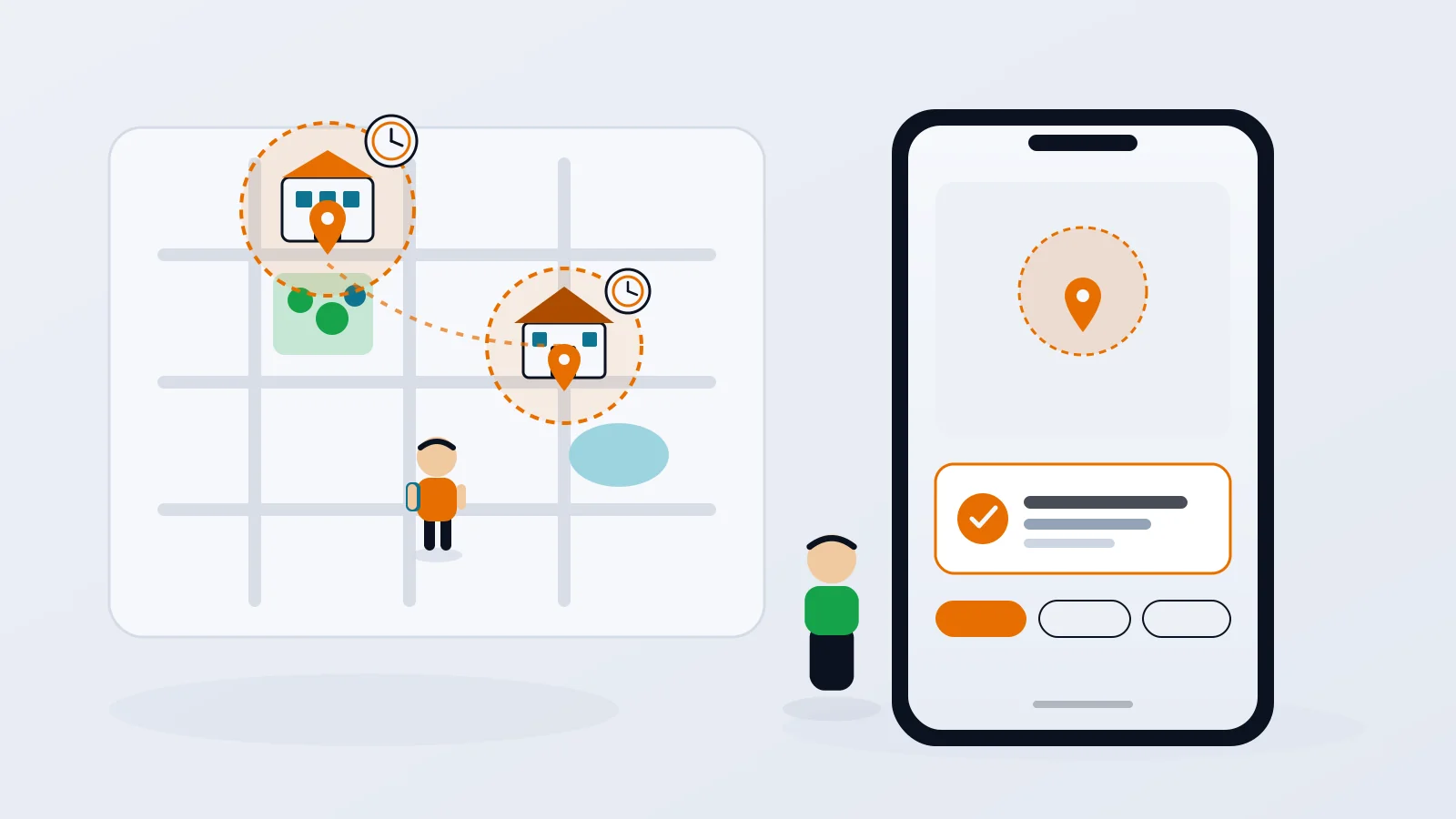
"She got to school." "He's home." For a lot of parents, those two messages are the whole reason to share location with a kid. You don't need a live map. You need to know the walk, the bus or the bike ride ended where it was supposed to.
That's what a geofence alert does. The trouble is that most geofences are set up once and left running around the clock, and within a couple of weeks the alerts you care about are buried under the ones you don't. This guide is about setting up location alerts for kids so the ones you get actually mean something.
What a geofence alert actually tells you
A geofence is a virtual boundary drawn around a real place, like a school, a sports field or a grandparent's house. When your child's phone crosses that boundary, you get an arrival or departure notification.
That's a narrow kind of information, and that's a good thing. An arrival alert doesn't show you where your kid has been all afternoon. It answers one question, at one place. For kids who are just starting to go places on their own, that's usually exactly the right amount.
Where geofences go wrong isn't the where. It's the when.
Why always-on alerts turn into noise
An always-on geofence fires every time the boundary is crossed, at any hour, on any day. In practice that looks like:
- The right place at the wrong time. The school zone pings on Saturday because the soccer game is on the school field.
- Too many places. A zone for every friend's house, the library and the corner store, each one adding alerts.
- Alerts nobody acts on. If a notification doesn't change what you do next, it's noise. Enough noise and you stop reading, including the one alert that mattered.
Kids notice too. A phone that reports every move, all the time, can start to feel like being watched, even when nobody is looking.
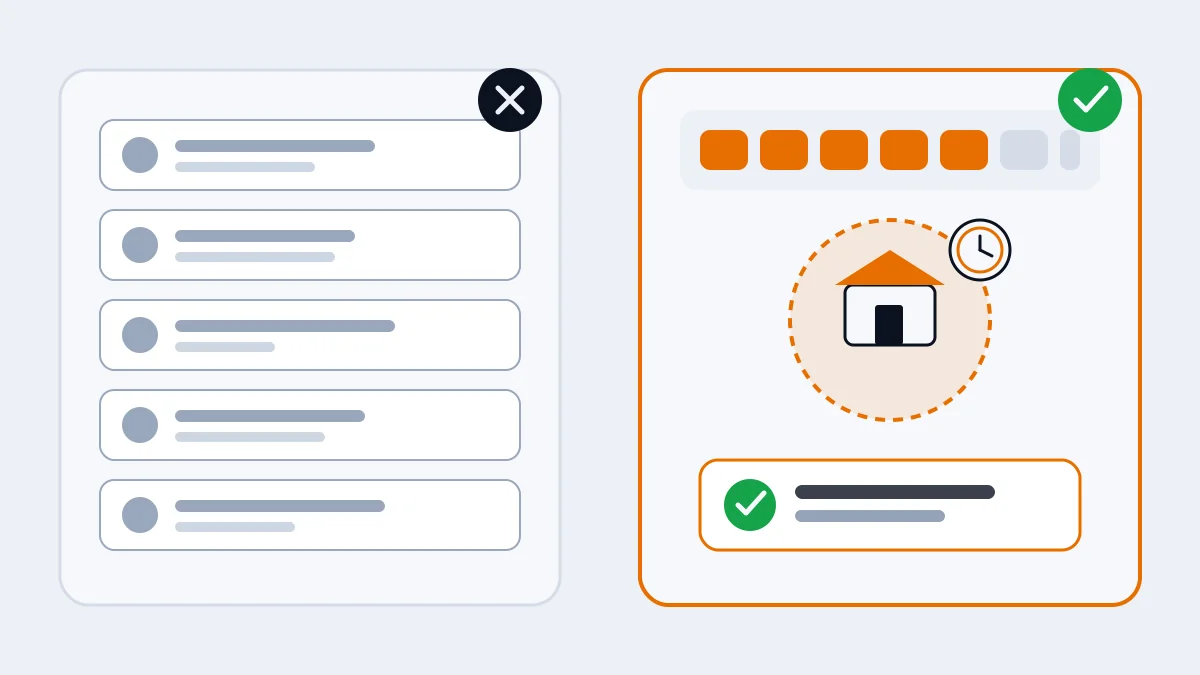
Step 1: Pick the places that actually need alerts
Before you draw a single zone, ask this about each place: "If I got an alert here, would I do anything differently?"
Places that usually pass the test:
- School, if your child walks, bikes or takes the bus.
- Home, on the days your child gets back before you do.
- A regular activity, like practice or a lesson, where the pickup time matters.
Places that usually don't: somewhere you'll only go once, places your child is always with another adult, and anywhere you'd just be curious about. Start with one zone. Add a second only when there's a specific question it answers.
Step 2: Give every zone a schedule
A scheduled geofence only runs during the windows you choose. Outside those windows, it stays quiet. Here's what a realistic week might look like for a 10-year-old:
| Place | Days | Window | The alert you care about |
|---|---|---|---|
| School | Mon to Fri | 7:45 to 8:30 AM | Arrived, or not there yet |
| School | Mon to Fri | 2:45 to 3:30 PM | Left |
| Home | Mon to Fri | 3:00 to 4:30 PM | Arrived |
| Soccer field | Tue and Thu | 4:30 to 6:15 PM | Left, so you know practice ended |
Use the real drop-off and pickup times, not the whole school day. Shorter windows mean fewer, more meaningful alerts. And the Saturday game on the school field? It sends nothing, because Saturday isn't on the schedule.
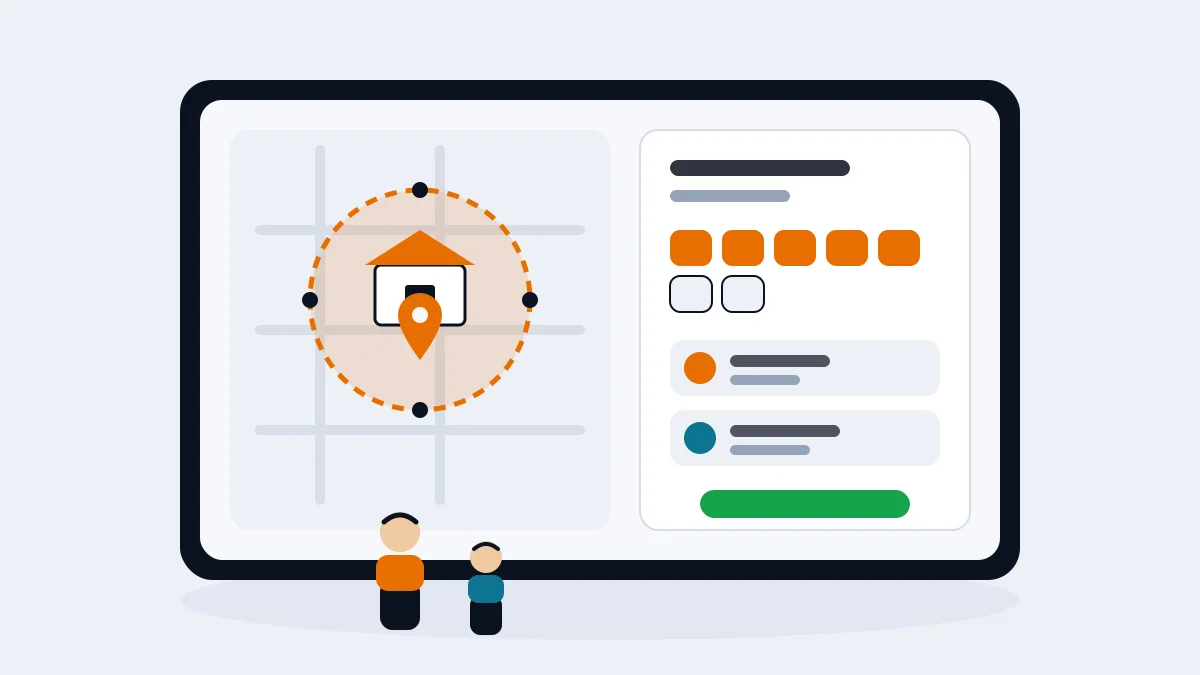
Step 3: Choose the alerts that matter for each place
Not every zone needs every alert. Once a zone knows when your child is expected, it can tell you more than "arrived" and "left":
- Arrived: they got there inside the window.
- Left: they headed out.
- Late: the window started and they haven't arrived.
- Left early: they left before the window ended.
Often the most useful alert is the one about something that didn't happen. On a school morning, "not there yet" is the message you'd want to see. A regular "arrived" every day is reassuring at first, but many parents find they only need to hear when something is off.
Step 4: Add a grace period and draw the zone generously
Two small settings prevent most false alarms:
- A grace period. A few minutes of slack, ten for example, keeps a slow bus or a long goodbye at the gate from turning into a "late" alert.
- A generous boundary. Phone GPS can drift, especially indoors. A zone that covers the whole campus or the whole park, not just the front door, keeps your child from "leaving" and "arriving" every time they walk to the far end of the building.
If you're getting alerts that don't match what actually happened, it's almost always one of these two.
Step 5: Set it up together
Sit down with your child and show them every zone and every schedule before you turn anything on. Explain it plainly: "When you get to school, I'll get a message. If you're not there when you're expected, I'll get a different one, and I'll text you to check." That's it.
Kids who know exactly what triggers an alert have nothing to wonder about, and they're far more likely to tell you when plans change. If you're not sure whether your child is ready for any of this, our guide to what age kids should get location tracking walks through it stage by stage.
Plan for the weeks that break the template
Real weeks don't follow the schedule. There are half days, cancelled practices and last-minute trips to a friend's house. A good setup lets you pause a zone or change it for one day without rebuilding everything. Agree in advance on what your child should do when plans change, whether that's a text, a call or a request through the app.
Then every few weeks, take a quick look back. Which alerts did you ignore? Turn them off. Which one did you wish you'd had? Add it. Over time the list should get shorter, as your child proves they handle the routine on their own.
How scheduled geofences work in SafeLoop
We built SafeLoop around this idea. Every zone has its own weekly schedule and grace period, and zone alerts only fire inside those windows: arrivals, departures, early exits and late entries. When your child is stopped somewhere outside every zone, you don't see where they are. Your child sees the same zones, schedules and alerts you do, so nothing runs behind their back.
When plans change, your child can send a pass request ("going to Jake's after school") that you approve or deny with one tap, and the schedule adjusts for that day only. You can pause any zone as they earn more independence. Every plan includes an SOS button, and on Standard and Pro you'll also get an alert if the app is removed, GPS is turned off or permissions change during a zone's active hours. We never sell your family's data; see our privacy policy for the details.
The free plan covers one child and one zone, which is enough to start with school. If you need more places, Standard and Pro add more zones; see pricing for the details. You can also read a deeper explainer on how scheduled geofencing works, or see how families use SafeLoop.
Frequently asked questions
What is a geofence alert for kids?
A geofence is a virtual boundary around a place like school or home. When your child's phone crosses it, you get an arrival or departure notification. It tells you that they got somewhere or left, without showing you a live map of everywhere they go.
How many geofences should I set up for my child?
Start with one, usually school or home, and add another only when there's a specific question it answers. Fewer zones with clear schedules produce alerts you'll actually read.
Why do I get geofence alerts at times I don't need them?
Most geofences are always on, so they fire every time the boundary is crossed, on any day. Giving each zone a schedule that matches your child's real routine stops alerts on evenings and weekends when you don't need them.
Can I get an alert if my child doesn't arrive somewhere?
Yes, if the zone has a schedule. Because a scheduled zone knows when your child is expected, it can alert you when the window starts and they haven't arrived. A short grace period keeps small delays from becoming false alarms.
Does my child know when I get a geofence alert?
That depends on the app. In SafeLoop, your child sees the same zones, schedules and alerts you do. We think every family should set it up that way, whatever app they use.
Try SafeLoop free
Scheduled zones, SOS on every plan, and kids see what you see.
The Free plan covers 1 member and 1 zone with SOS alerts. Standard is $4.99/month per family (up to 3 members, up to 5 zones, 3-day history, SOS alerts, tamper alerts, trips (street-level routes)). Pro is $9.99/month per family (up to 10 members, up to 10 zones, 7-day history, crash detection, speed alerts, route replay, daily summary). Subscriptions are billed through the App Store or Google Play.
Keep reading

How to track your teen without spying
The difference between location sharing and spying isn't the app. It's whether your teen knows, agrees and can see what you see. Here's how to set it up so it holds up.
· 7 min read
What age should kids get location tracking?
There's no single right age. What matters is the first time your kid is somewhere on their own, and how you plan to dial it back as they grow.
· 7 min read
Life360 alternatives for privacy-minded families
If you like the idea of a family locator but not the idea of your kid's location becoming a data product, here are the realistic options, what they do well, and where they fall short.
· 8 min readMore in our family safety guides and on the blog.